How to Create Your Account
How to Create Your Account
Creating a BitLease account takes about five minutes. This article walks you through every step, every screen, and every email you will receive along the way.
Before you begin
You will need:
- A valid email address you have access to
- A password you want to use for your account
BitLease is not currently available in all countries. If you are located in a restricted jurisdiction, you will see a notice during sign-up. For the current list of supported regions, refer to the Jurisdiction and Limits policy on bitlease.com.
Step 1: Access the Registration Page
Navigate to BitLease
Open your web browser and type the official URL:
bitlease.com
Security Reminder: Always verify the URL is correct. Scammers may create fake websites with similar addresses. Bookmark the legitimate site for future visits.
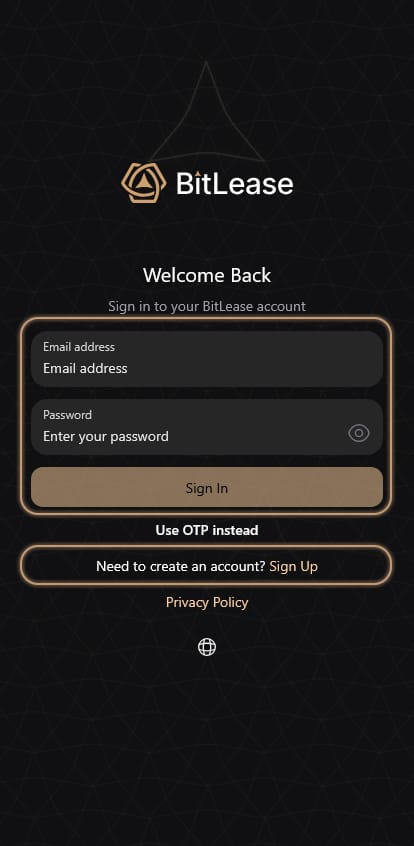
Locate the Registration Option
On the homepage, you’ll see options to:
- Sign In (for existing accounts)
- Sign Up or Create Account (for new accounts)
Step 2: Enter Your Email Address
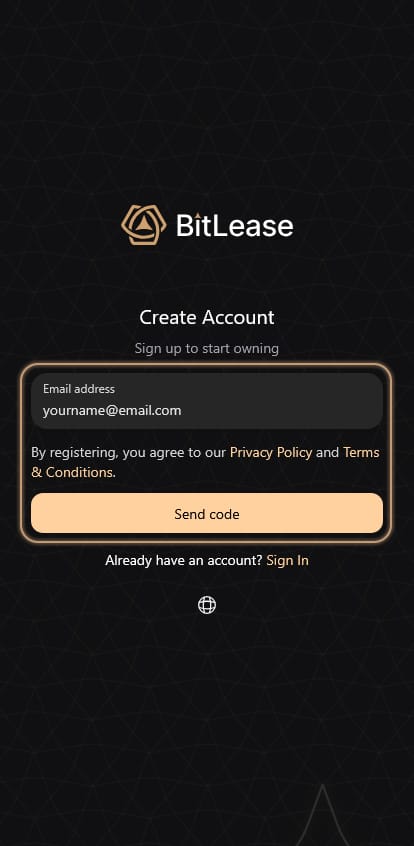
Registration Form
The "Create Account" screen features a clear, structured design. Below the "Sign up to start owning" subtitle, you will find the primary input field asking for your email address.
Tips for entering your email:
- Use an email account you check regularly.
- Double-check for typos before proceeding.
- This email will serve as your primary contact point and login credential.
Why your email matters:
- It functions as your primary identifier on the platform.
- You will receive critical security notifications about account activity.
- Updates regarding your contracts and platform communications will be sent here.
Security Tip: Use a secure email account with two-factor authentication enabled to protect your BitLease account from unauthorized access.
Step 3: Verify Your Contact
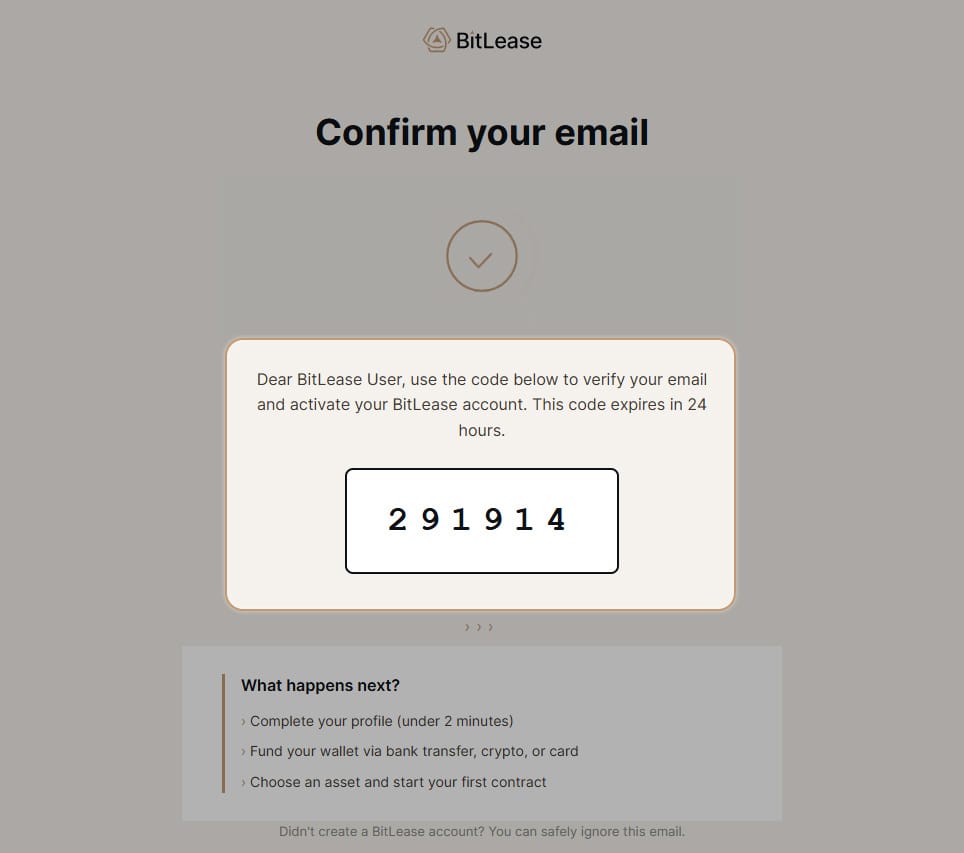
BitLease will send a verification email to the address you entered. Check your inbox.
The email contains two options. Use either one:
- Click the Confirm your email button inside the email, or
Copy the 6-digit OTP code from the email and paste it into the verification field on the registration page
Then click Verify and Create Account.
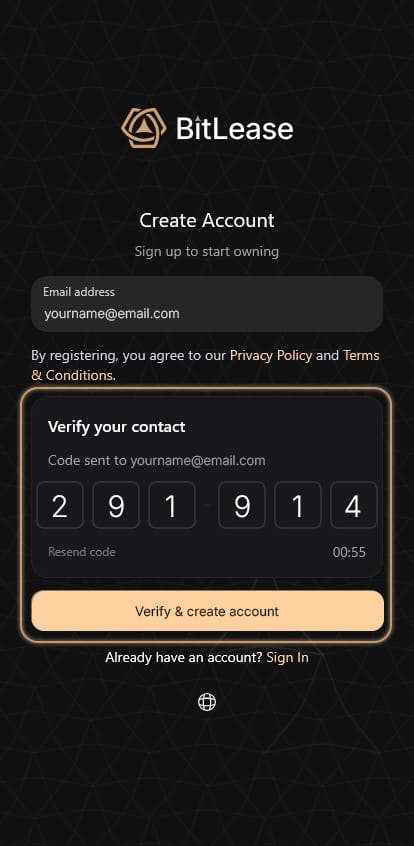
If you do not see the email within a couple of minutes, check your spam or junk folder. You can also click Resend Code after two minutes to receive a new one.
Why this matters:
This verification protocol is a necessary structural step. It guarantees you have complete control over the communication channel for your digital assets, while maintaining the integrity and security of your account.
Step 4 — Request your password setup code
Once your email is verified, you are taken to a page where you set your password.
On this screen, click Request Verification Code. BitLease sends a second email to your address with a 6-digit code. This is a separate code from the one used in Step 3.
Again, check spam if the email does not arrive within two minutes. Click Resend Code if needed.
Step 5 — Set your password
Once the code arrives, fill in all three fields on the screen:
- Verification Code — the 6-digit code from the email
- New Password — choose a strong password
- Confirm New Password — type the same password again
Then click Set Password.
Your password must meet the security requirements shown on screen. Use a combination of letters, numbers, and symbols, and do not reuse a password from another service.
Your account is ready
You have created your BitLease account. You will now be taken into the platform.
Your account starts at KYC Activated level, which means you have access to the platform but with some limits in place. To unlock full deposit and withdrawal capabilities and access all products, you will need to complete identity verification. The next step for that is in the article How to Complete Your Identity Verification (KYC).
If you already have an account and forgot your password
Go to app.bitlease.com/en/security or click the Profile icon in the top right corner of the platform, then select Security. From there you can reset your password using the same process as Step 5 above.
Next Steps After Account Creation
To fully activate your account, proceed to identity verification. Follow the steps outlined in
How to Complete Your Identity Verification (KYC)
Need Help?
If you encounter issues during account creation, contact BitLease Support:
- Email: support@bitlease.com
- Subject: "Account Creation Issue."
- Include: A description of the problem, any error messages, and steps you’ve already tried.
- Response Time: Within 24 hours.
For urgent security concerns, email: security@bitlease.com.