A Tour of the BitLease Platform

Last updated on July 12, 2026

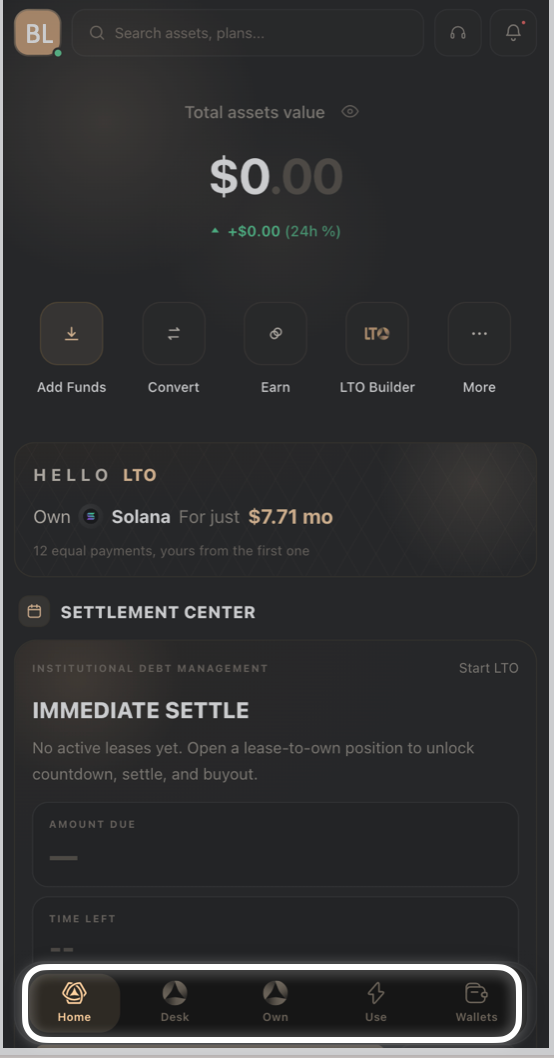
The bottom navigation bar

Everything on BitLease is accessible from the five tabs at the bottom of the screen:

Home — Your main overview. Shows your total assets value, quick action buttons, active contract alerts, and shortcuts to key platform tools.

Portfolio — A view of everything you hold across all wallets and all contracts. Use this to track the performance of all your positions in one place.

Own — The products designed for digital asset acquisition. This is where you build and manage LTO, LTB, and LTE contracts. More on this below.

Use — The Lease to Use (LTU) product. This is where you access digital asset performance for a defined period without taking ownership.

Wallets — Your wallet management area. This is where you add funds, view balances, transfer between wallets, convert assets, and withdraw.


The Home screen

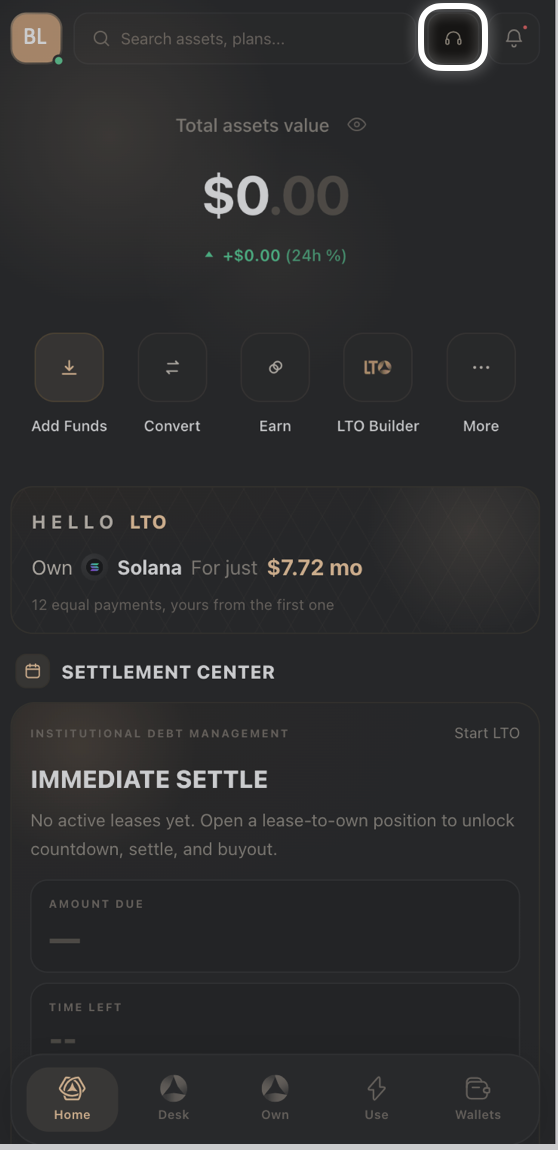
When you log in, the Home screen is the first thing you see.

[screenshot-home-screen-full-overview]

At the top you will see:

  • Total Assets Value — the real-time combined value of everything in your account

  • A 24-hour change indicator below it

  • An eye icon to hide your balance for privacy

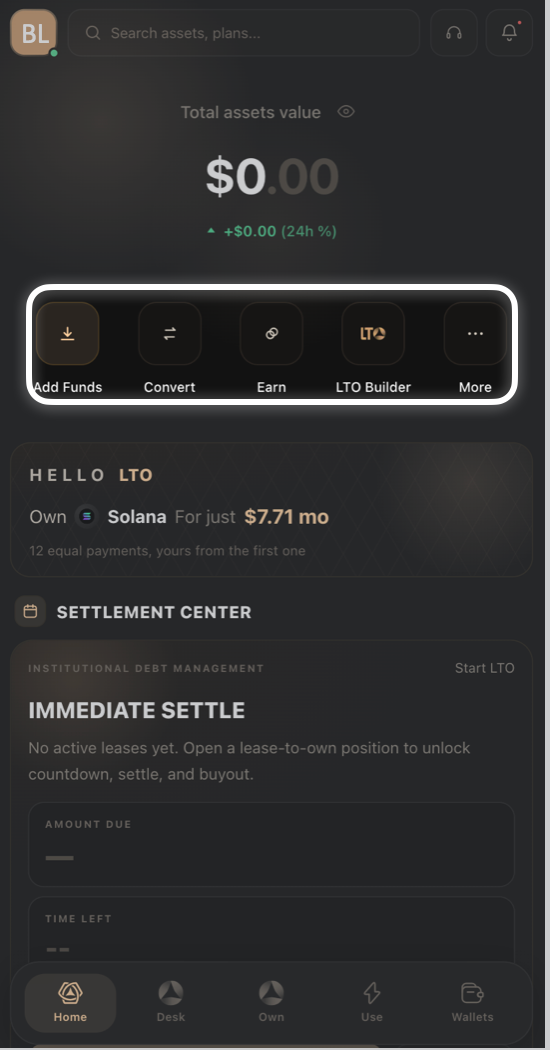
Below that, a row of quick action buttons lets you jump directly to the most common tasks: Add Funds, Convert, Plans, LTO Builder, and More.

If your account is at KYC Activated level, you will see a banner prompting you to complete identity verification. It reads "ACTIVATED — Get Identified" and links directly to the KYC Center.

Further down, the Home screen shows any active contract alerts. If a contract is approaching a settlement date or requires your attention, it appears here as a Settlement Center card.


The Own tab

The Own tab is where you work with the three ownership products: LTO, LTB, and LTE.

At the top of the Own screen, you will see three sub-tabs:

  • LTO — Lease to Own: Build a single-asset contract. Choose the asset, set your down payment percentage, select the schedule, and review the full contract before signing.

  • LTB — Lease to Bundle: Build a multi-asset contract. Add multiple assets, set the weight of each one, and create a single contract that covers the whole bundle.

  • LTE — Lease to Elect: Set an investment amount, pick two to four assets, set your election window, and decide which one to keep later.

Each sub-tab has a "New to this product?" banner at the top with a "How it works" button. If you are using a product for the first time, tap that button before configuring your contract.


The Use tab

The Use tab opens the Lease to Use (LTU) product.

This is a more advanced product designed for users who want short-term access to a digital asset's performance without ownership. The interface shows a live asset pair, a mode selector (Asset Led or Obligation Led), the current rate information, and a live orderbook.

Your active leases appear in the section below the deal-builder area, organized into Leases, Pending, and Bots tabs.


The Wallets tab

The Wallets tab is where all your money actually sits.

BitLease uses separate wallets for different purposes. The two main ones are:

  • Funding Wallet — your entry point. All deposits arrive here first. This is where you hold funds before starting a contract.

  • LTO Wallet — the wallet where your leased assets are held once a contract is active. Assets here are organized into Locked (active in a contract) and Free (fully owned or surplus, available to withdraw).

You will also see wallet entries for LTB, LTE, and LTU when you have active contracts in those products.

From the Wallets tab you can: add funds (deposit), transfer between wallets, convert one asset to another, and withdraw.


Your profile

Tap your profile icon in the top right corner of the Home screen to access your profile area.

From here you can reach the User Center, which contains your account information, identity verification status, VIP level, and app preferences. The Security section lets you change your password.

For a full walkthrough of everything in the profile area, see the article Understanding Your Profile Tab in the Account Settings section.


Need Help?

Contact BitLease Support

For assistance, reach out to BitLease Support:

  • Email: support@bitlease.com

    • Subject: "Dashboard Issue"

    • Include: A description of the problem, any error messages, and steps you’ve already tried.

    • Response Time: Within 24 hours.

For urgent security concerns, contact: